Split Keyboards
Long, long ago, when I was but a wee lad, I once saw a picture of a Dactyl-ManuForm keyboard. For those that've never heard of it before, this is what one looks like:
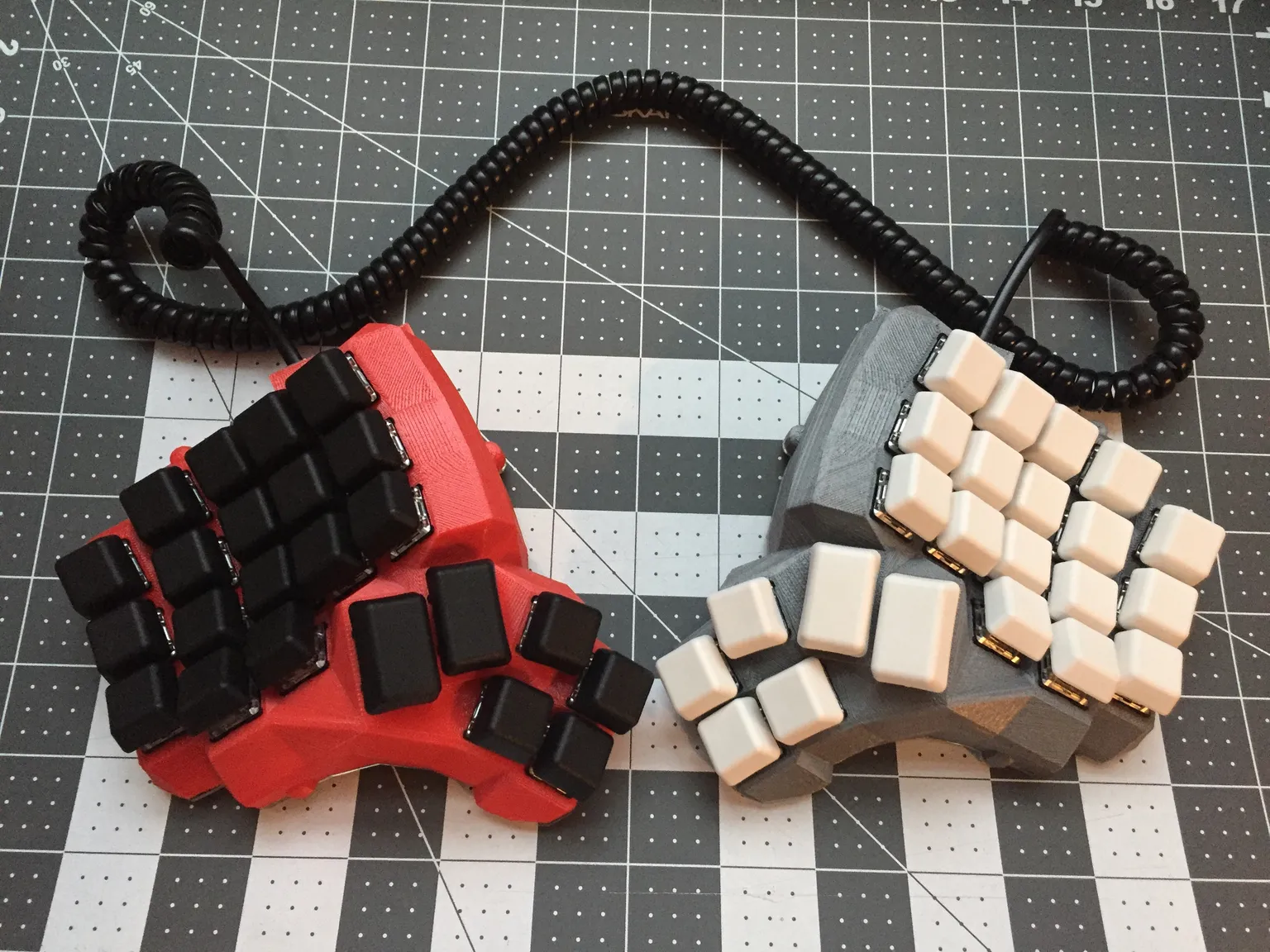
My first instinct was 'ooh, this looks cool, me want!', so I hopped onto Google and tried to see where I could buy one and for how much. I didn't really care about the benefits of ergonomics, I just wanted to intimidate people when I typed. Unfortunately, younger me's hopes were dashed when I found some listings online - for the cheap, cheap price of 40,000 INR (650 USD at the time).
Into the recesses of my mind went the Dactyl, never to be thought of again for another decade. It finally resurfaced in the most innocuous of places - while on a trip to Japan with my friends.
# The Need to Spend
Japan was a fun trip for me. I'd gone with my roommates at the time, and a college friend of one of them. The four of us had checked into our hotel in Osaka, and were talking about our plans for the trip. I'm normally less of a travel person and more of an experience person - less sightseeing and more eating/activities/shopping - and we were discussing our shopping plans.
At the time, my only shopping target was Pokémon, but one of us had a massive shopping list with dozens of things, including requests from other people. He mentioned that he was gonna hop by Yusha Kobo in Akihabara to get a couple artisan keycaps for a friend, and I remembered my hopes from long ago - to get a cool keyboard.
So when he finally went to Yusha Kobo, I went with him. After shopping for a lot of Pokémon plushies, of course.
# Yusha Kobo
Yusha Kobo was a pretty cute place. As someone who'd never even owned a mechanical keyboard before this, it was also pretty intimidating. It wasn't very large, but every shelf and wall was covered with rows and rows of keycaps, boards, and bodies of every kind imaginable (and more; some still confuse me).
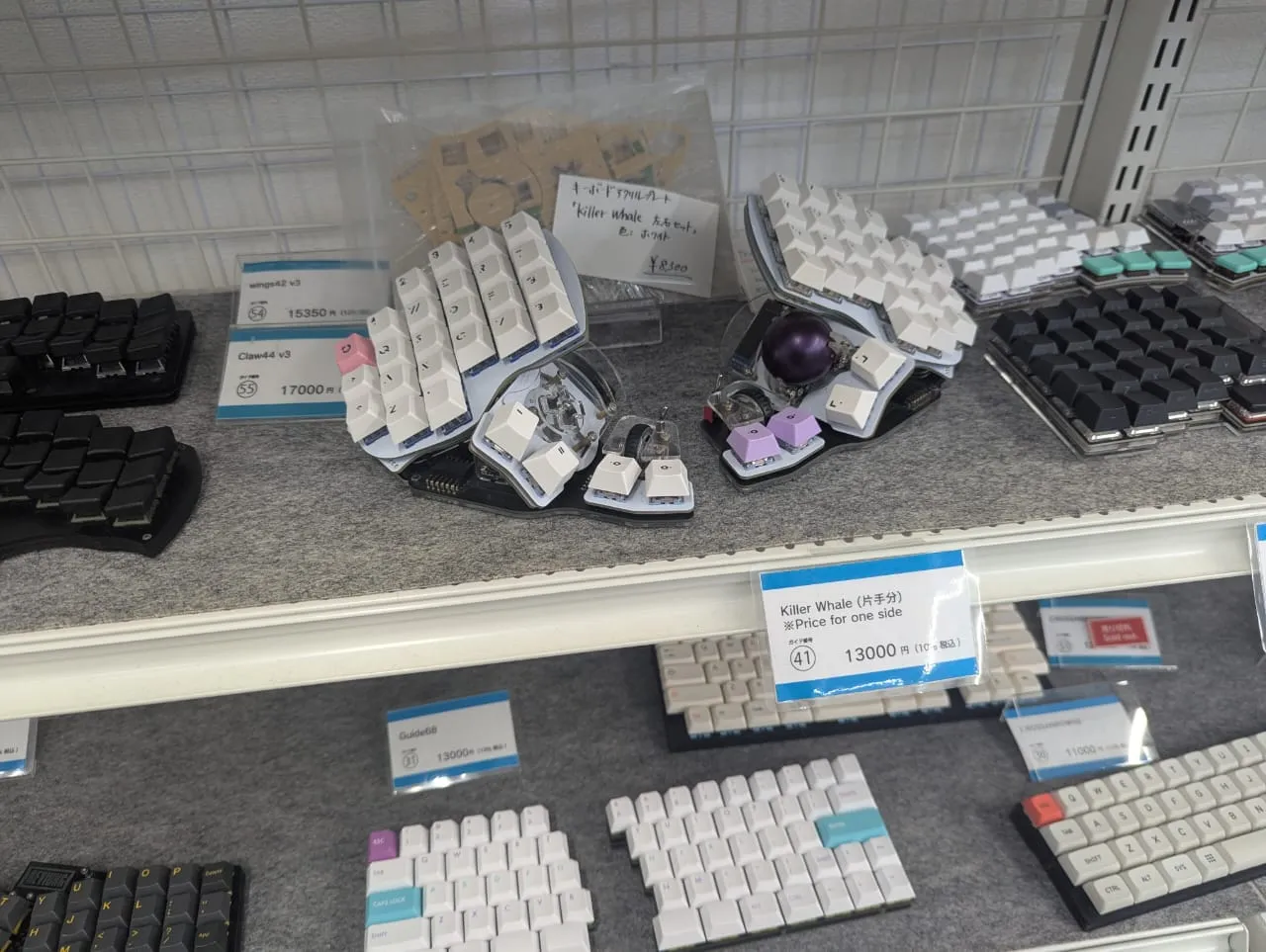
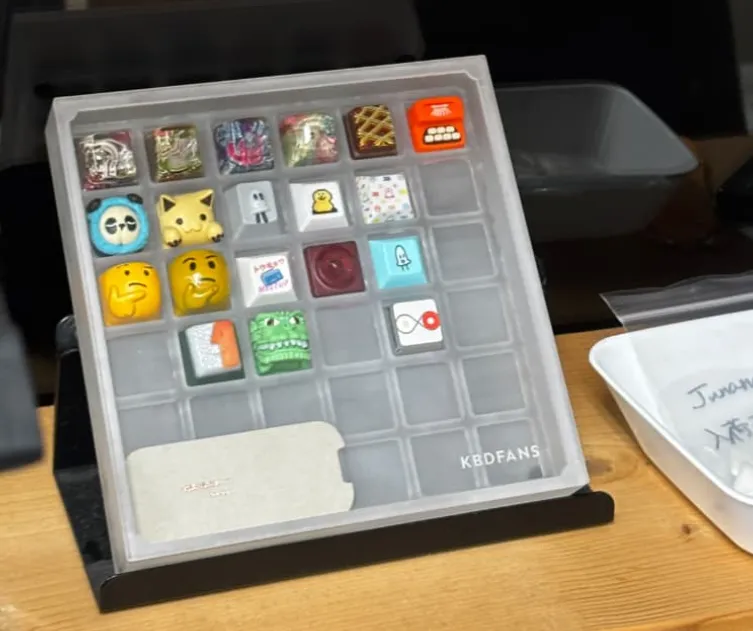 They also had a lot of REALLY pretty artisan keycaps, and my friend got to work picking out the ones that his friends had asked for, including a cute pair of cat keycaps. I decided to go looking for a keyboard first, since I had no idea about compatibility with various keyboards. Sadly, it turned out that artisan caps aren't really a thing for low-profile keyboards, which was the type I was looking for.
Not knowing much about keyboards in general, my eyes were drawn to the Corne choc v4. It had exactly what I was looking for - a low profile, a fancy-looking split setup, and best of all - a case with side walls. Since I lived in India at the time, I was NOT looking forward to dust piling up on the PCB (India is VERY dusty), and so having a nice case kinda sealed the deal.
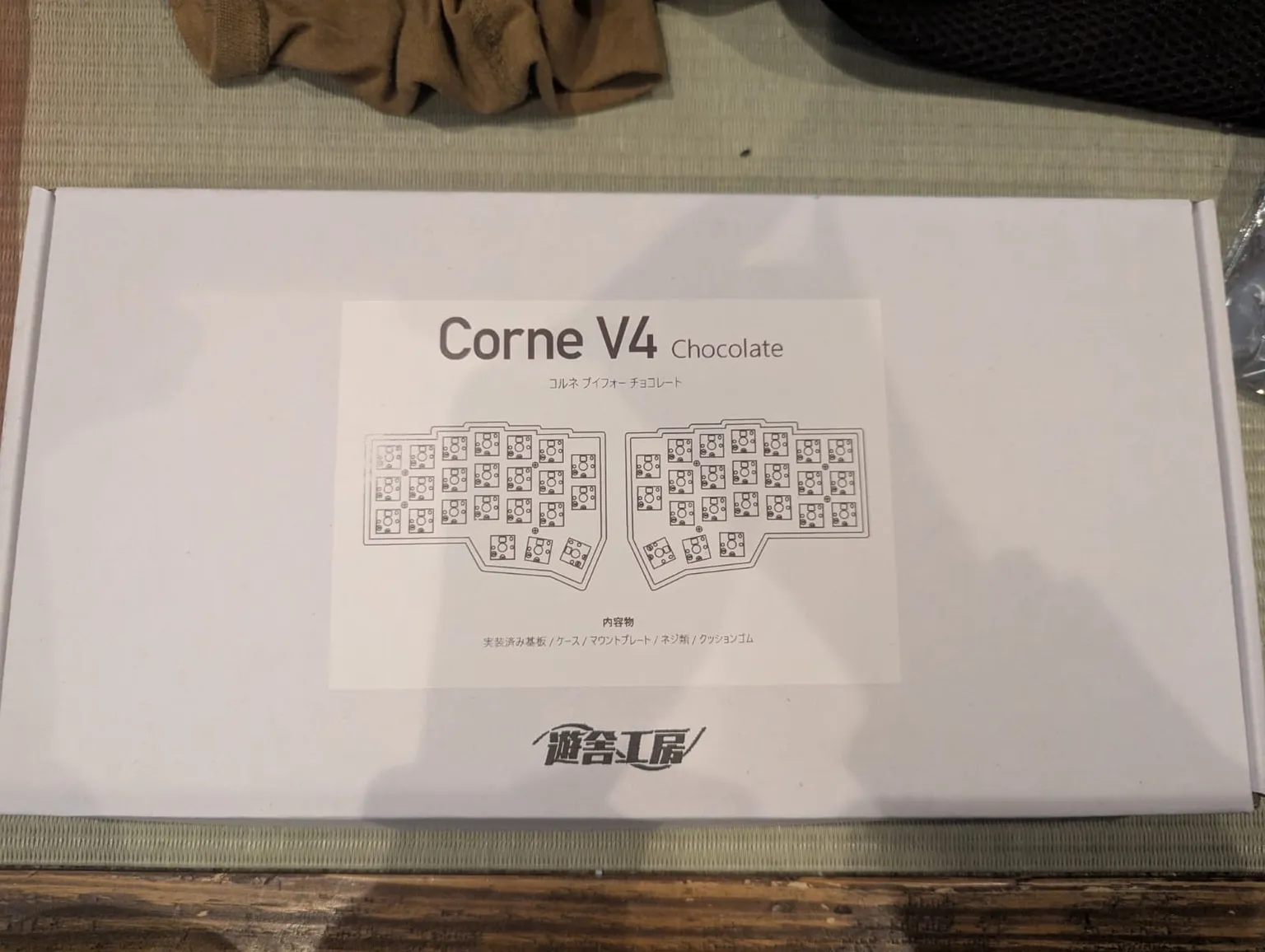
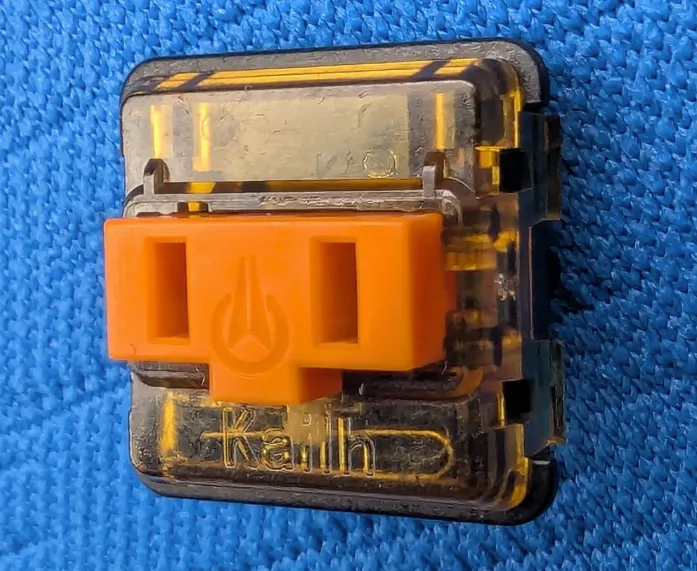
My main keyboard at this point in time was the low-profile scissor switch keyboard of the MacBook Pro (work laptop, before anyone begins to blow up!). I was looking for a switch that mimicked this feel, and the switch tester board at Yusha Kobo was a great help in trying out a ton of different switches. I decided to try different switches out before I looked at the price tag, hoping that I'd like a cheaper switch before knowing the price point. Unfortunately, the best low-profile switches I found were the Kailh v1 Sunset Orange Tactile choc switches, priced at a whopping 43 JPY per unit (27 US cents each). I ended up getting 60 of these, since my new Corne had 46 keys (and it's always good to have plenty of spares).
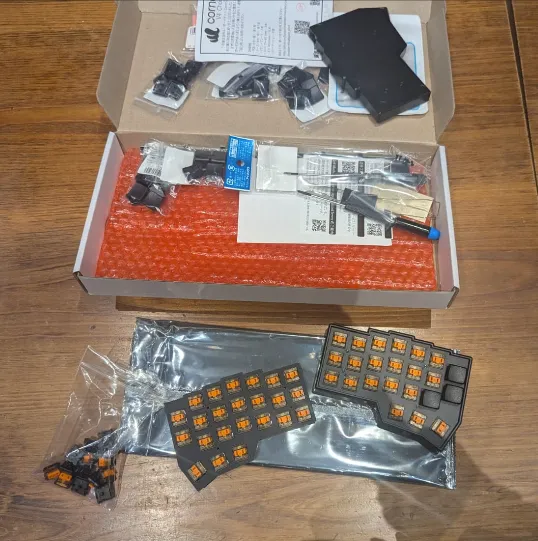
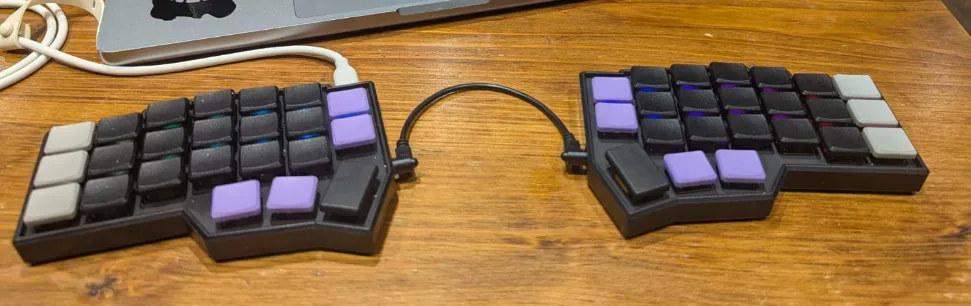
Sadly, since I was looking in low-profile Kailh chocs, there were precious few keycap options. Most keycaps are Kailh v2s or MX stems - which are the classic 'plus' that most people are familiar with. I settled for a full set of black MBK chocs, with three sets of 10 for other colors - gray, lavender, and pink. I also got a TRRS cable for each half of the keyboard to communicate with each other, plus some keycap remover tools and a small screwdriver.
# The Tinkering
Once I got home, it was time for assembly. I was originally planning to build this afterward, but I was excited enough that I couldn't sleep - so I stayed up late to finally give it a try. The assembly kit came with plenty of instructions, so assembly was fairly straightforward. I put the top cover over the PCB, pressed in the switches (these were friction-fit), screwed in the bottom cases, and started playing around with different keycap patterns.
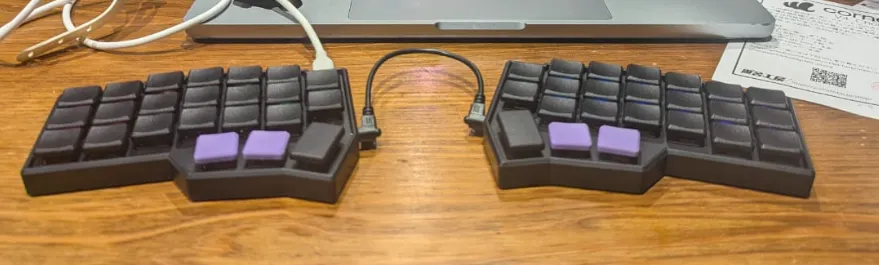
A brief look into how a (split) keyboard works:
- The split keyboard has two halves. When you plug one in, it becomes the motherboard of the keyboard, and feeds power/signals through the TRRS cable to the other half, which becomes a daughterboard. There were MANY warnings on the assembly kit to NEVER connect/disconnect the halves while one was plugged in - this risked shorting the entire circuitry.
- Each half has four 'layers' - there's the external case (just a plastic shell), the PCB (handles the wiring and circuitry), the switches (control how the keys feel when pressed), and the caps (affect texture, lighting, and appearance).
- The keyboard processes how to respond to each keypress and emits those accordingly to the connected device.
Having finally assembled the keyboard, I finally sat down to try and use it. And oh boy, did the confusion start. Firstly, since all the keys were blanks, I had no idea what each key was. It hadn't occurred to me during assembly, but my keyboard had 46 keys - while just the alphabet, number, and punctuation keys alone totaled up to the same (26 + 10 + 10). How was I going to press shift, or enter, or space?
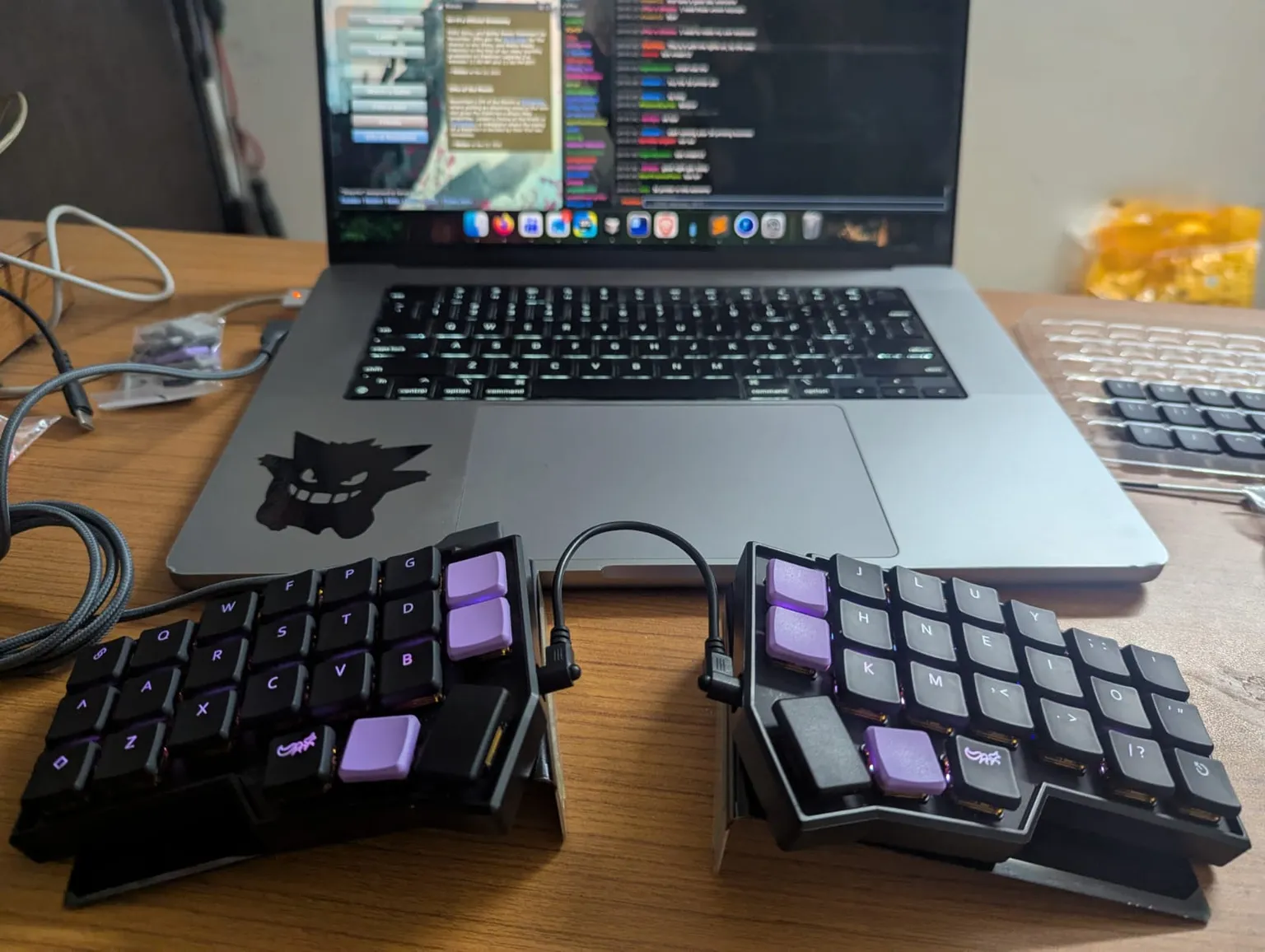
Being the nerd I am, I decided to try out pressing each key on a key tester website. On each half, my keyboard had 6 columns of 3 keys + 1 column of 2 keys + 3 keys on the thumb. I quickly found out that the central 10 columns contained the entire alphabet and much of the punctuation, and that the long keys on each thumb were 'space' and 'enter'. I tested out the modifiers too, and eventually got most of them. There were, however, three things that still puzzled me. What was the purpose of those two thumb keys that seemed to do nothing? Was there a way for me to customize the layout? And most importantly, how the heck was I going to type numbers?
All three of these were answered by something called Vial.
# Vial
Helpfully, the instructions that the keyboard came with also included a link to a GitHub repository that had a guide on flashing Vial onto the keyboard. Vial is a fork of QMK, which has VIA as a feature. Effectively, VIA and Vial both allowed the keyboard to store its own keymap and update it without needing to flash it with new firmware - you can directly edit it from an app, or even through the browser. To flash it with Vial, I had to fiddle a bit with the circuitry and press some hardware switches, but it was done fairly quickly.
Having Vial was great - I could finally see what my keys were, though there were a ton of scary menus. Turns out Vial lets you customize a heck ton of stuff, including stuff like backlight patterns and colours. It was both an easy solution to my want of being able to customize it (particularly the lighting!), and an indirect link on how to actually hit those keys I was missing. After some reading, I was introduced to layers.
A layer is, put simply, a different keymap for your keys. Many standard laptop keyboards already have stuff similar to layers - the Option key on Mac, for example, makes your 'P' key behave like a π instead. And more ubiquitously, the Shift key will change most letters into uppercase keys of themselves, alongside less-obvious key changes like - to _ and 8 to *. To type a 1, I activate a different layer and press the appropriate key in this layer to emit the character I want - in this case, I activate Layer 1 (instead of the base Layer 0) and press the Q key.
This might sound complicated to memorize, but it's actually surprisingly easy once you get used to it. My default 'layer 1' was activated by holding one of the keys I was confused about before, and the 1 was in the same column that it would've been on a regular keyboard. Other symbols were way more frustrating, but still doable. After a bit more fiddling, I found out that you actually had more than two layers - the other key would activate layer 2 while it was held, and holding both simultaneously would trigger layer 3 instead!
All in all, with only 46 keys, I instead had access to nearly 200 keys. Here comes in another issue, though - what about key combinations?
This probably doesn't seem like too much of a change to non-programmers. There's only a few shortcuts that most people use, and almost all of them are two-key shortcuts (think Ctrl+C or similar) - but for many of us who code for a living, we live and die by our keyboard shortcuts. My own workflow has several interesting bindings, many of which are four-key shortcuts - Cmd+Opt+Shft+C on my Mac is 'copy the current file path relative to root along with line number', for example. This works fine on a traditional keyboard, but with layers added into the mix:
- Is it physically possible to hit all relevant keys? (Are they all available on the same layer? If not, you physically can't press them since layers apply on the whole keyboard)
- Is it reasonably possible to even press the keys? (I only have a limited number of fingers and they only stretch so far)
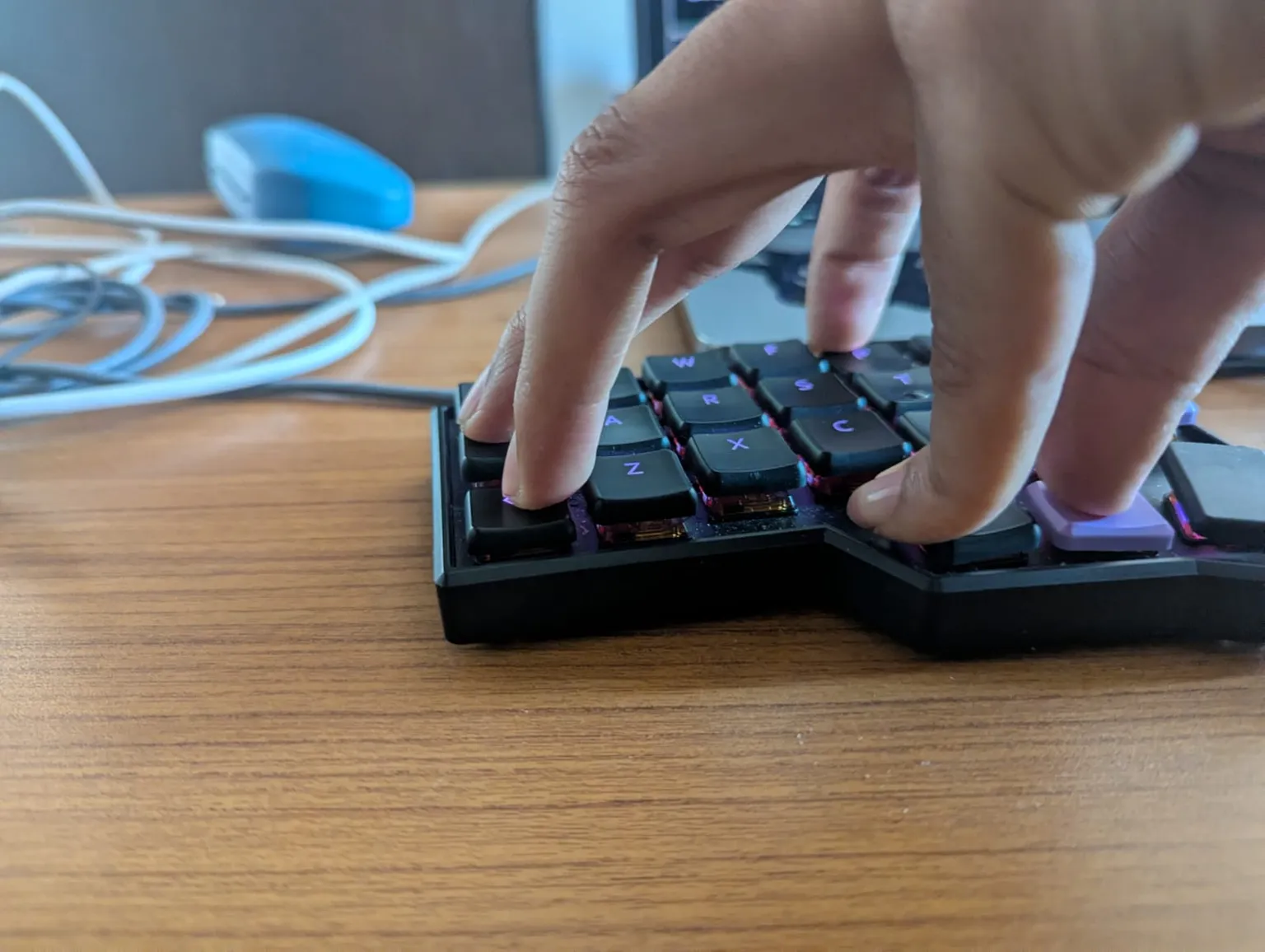
Funnily, this turned out to matter less than I imagined, for two reasons:
- Most of the keybinding-related keys (
Cmd,Opt,Ctrl,Shft) are retained across all layers (this is what the downwards-facing triangles indicate on Vial layers - they implement whatever's on the layer right below it) - You can rebind keys and custom shortcuts to actions instead of shortcuts (eg: I can trigger the 'brightness reduction' action instead of manually doing
Fn+F1)
# Picking a Layout
When I first started out on the keyboard, I was on QWERTY for a week or so. I still had MBK blanks at the time, so typing was stuttering, and it got me to thinking - if I'm going to be relearning to type, shouldn't I switch to a "better" layout while I'm at it?
I started out by checking Miryoku. Miryoku is a minimalist layout that relies heavily on layers for very ergonomic typing. That being said, it's also somewhat complicated to pick up - here's how it looks.
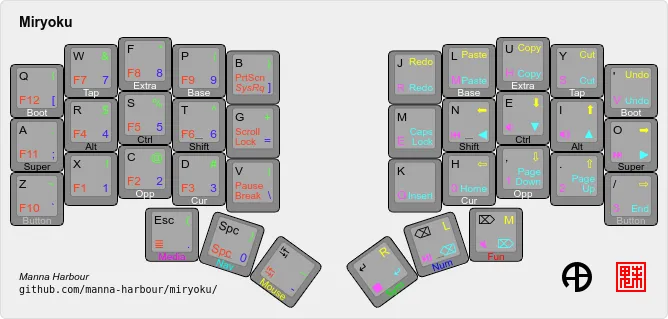
All of what you see here highlighted in other colours here are keys that exist on other layers. Miryoku relies heavily on combinations like home row mods to switch layers - which does result in a couple misfires. I was pretty intimidated by it, so I ended up instead using just its base letter mapping (which it gets from Colemak-DH), and using the standard QWERTY character bindings that were pre-flashed on the keyboard.
Having decided to switch to Colemak (not yet realizing that Colemak-DH was a separate layout), I went through the Vial UI and set it up. I also went through and set up some extra layers - some mappings on layer 3 for my F1-12 keys, plus hardware controls (volume, brightness, media). I also set up a new toggled layer on layer 4, which was my dedicated navigation layer - it had mouse controls, including pointer direction, speed, and clicking.
A couple weeks in, I realized that there's actually a super common modification on Colemak called Colemak-DH, which swaps around 5 keys so they're more comfortable to use (prioritizing using the index finger over a home row stretch). After I switched, typing letters like H and D was super annoying for a bit, but it's been pretty comfortable since. I might even make the full switch to Miryoku someday. For now, I've been tracking my Vial config on GitHub.
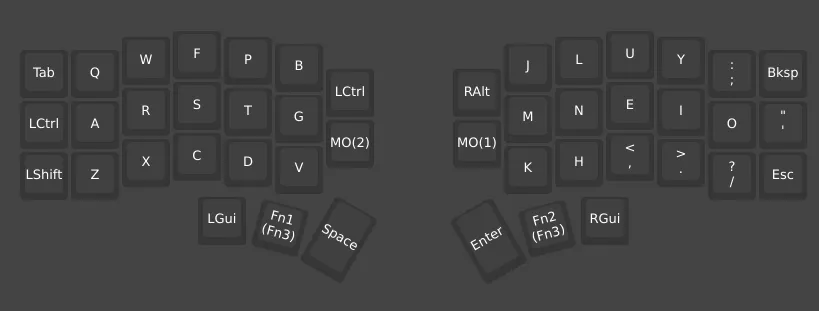
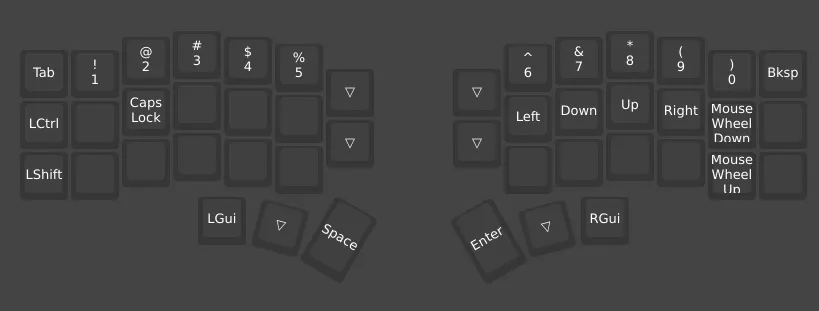
That being said, the navigation layer still sucked - I was way too used to using a touchpad to point to things - so I began my hunt for better cursors.
# Pointing Devices
Many of you might be familiar with the Trackpoint commonly seen on many laptop keyboards, and I was initially thinking along the lines of one of these. I was significantly held back by two things, though - I didn't really know much about the hardware yet by this point in time, and more importantly I never really liked nubs. Then I realized I already had the solution, and I'd seen it right in Yusha Kobo - a trackball!
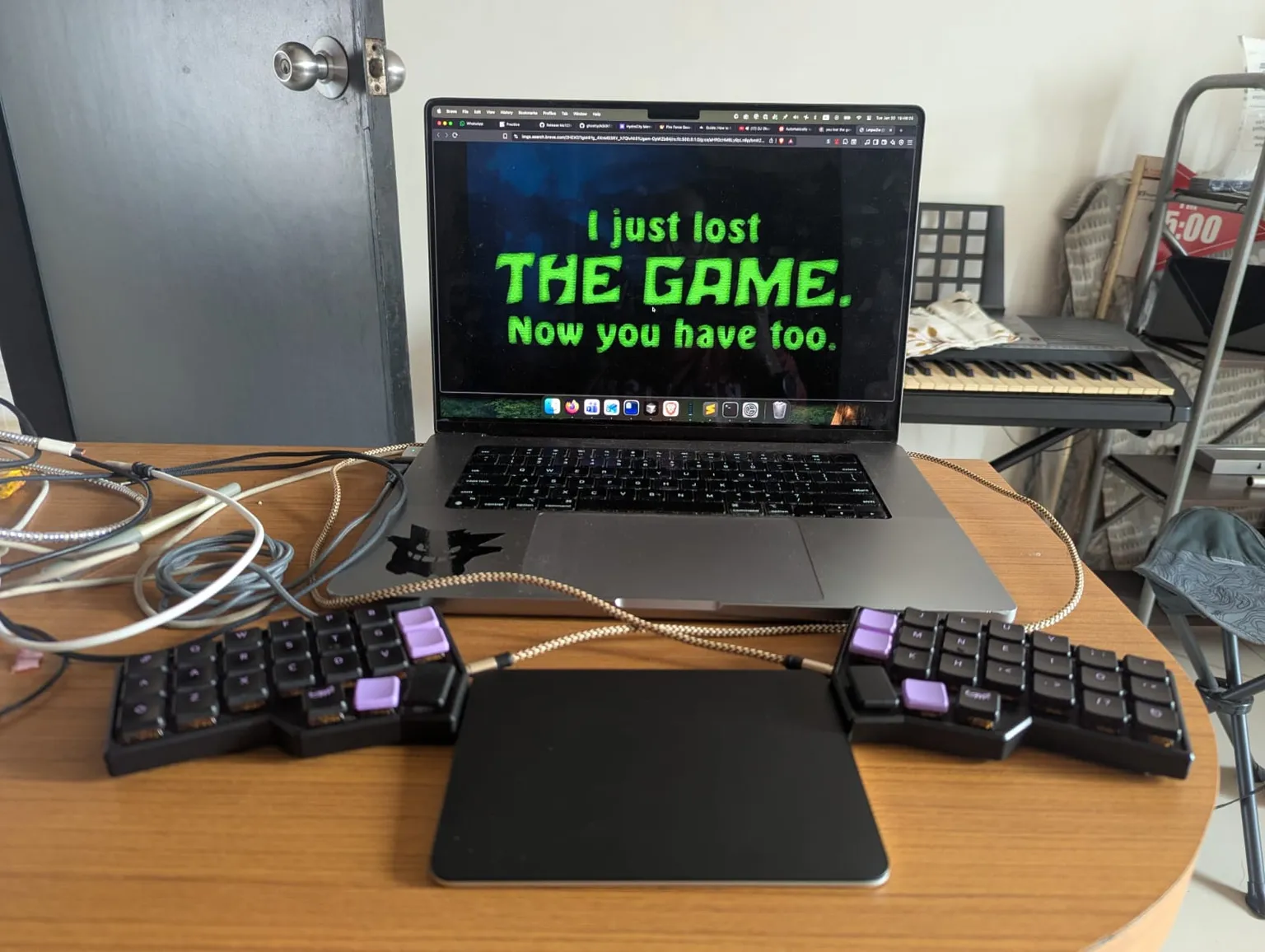
A trackball seemed like the perfect solution! It was comfortable to use, would be accurate enough for most of my needs, and best of all, looked really cool. The hardware ignorance issues from earlier were still a thing, though - I didn't really want to buy a new keyboard just for this. Instead, I started looking into a touchpad instead. I rather loved the touchpad my work Mac had, and was thinking I'd find something similar that I could just use as a third 'half' (third third?) to my keyboard setup.
Funnily enough, Apple does sell its own Magic Trackpads. And so, crying at the cost of the small mouse alternative, I caved in and got one.
You might be wondering at this point - PartMan, why didn't you just get some other trackpad? You don't really like Apple, so why not get a cheaper, better, non-Apple trackpad?
And that's because external trackpads don't really seem to be a thing yet, sadly. There's a couple alternatives in the market - I spent a while checking these out - but the general consensus is that most of these feel less nice in some way or the other.
But PartMan, why not a really good mouse at that budget? Well, I don't really like mice in the first place - they take a lot of place to use, for one, and also I'm a dedicated touchpad Minecraft player. I don't regret it, either - say what you want about Apple, but they can make a really nice trackpad.
# Keycaps
You might've noticed by now that I have actual letters on my keys! Not long before I got the trackpad, I was also looking at a better set of caps - ones that would have letters (because I sucked at blind typing with a new layout), and also let the backlight shine through. I settled on some ChosFox PC translucent legend caps, which were really pretty (even if the stems on most keys did end up snapping off within 6 months). Sadly there aren't too many options in low-profile Kailh v1 caps...
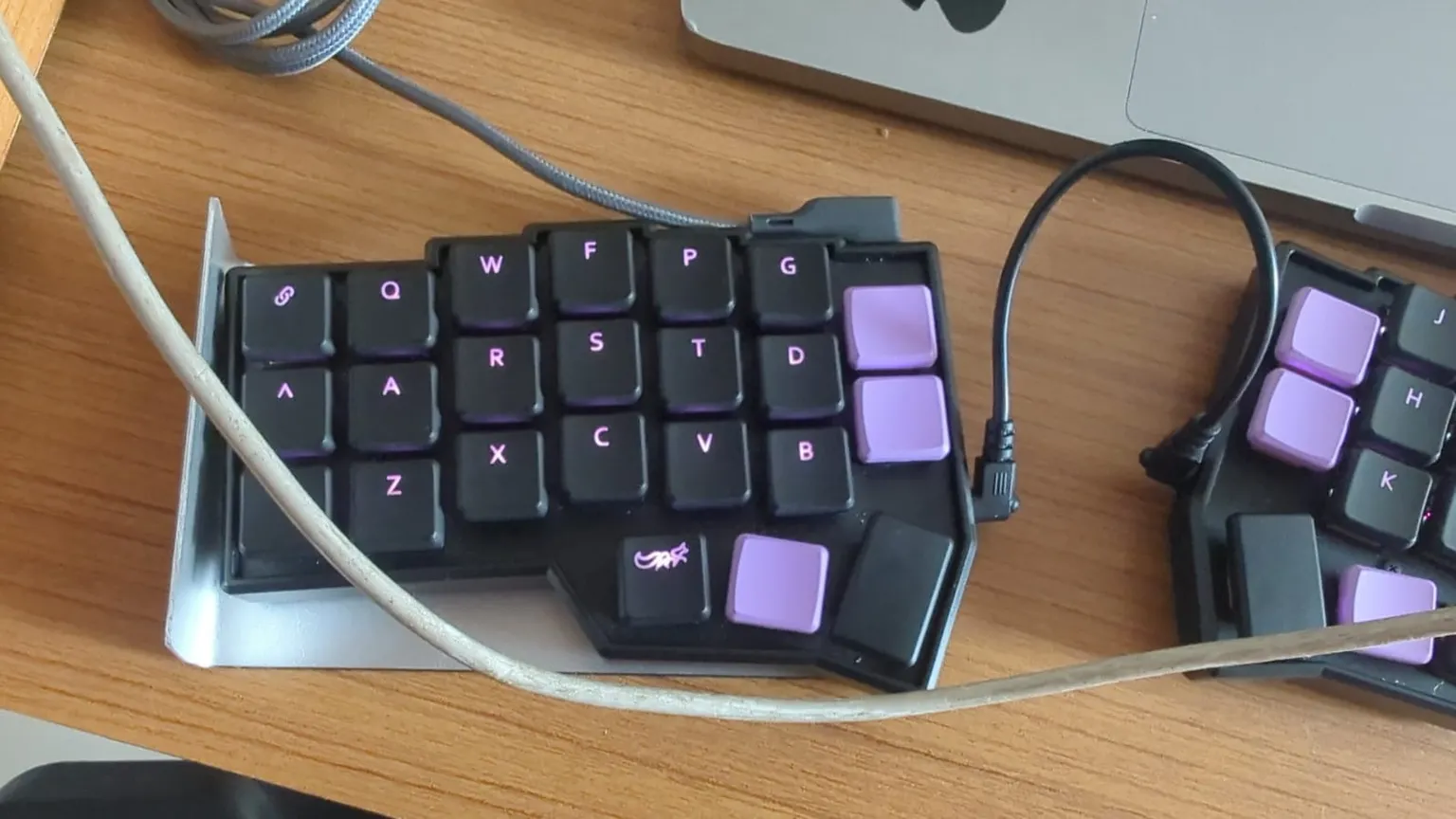
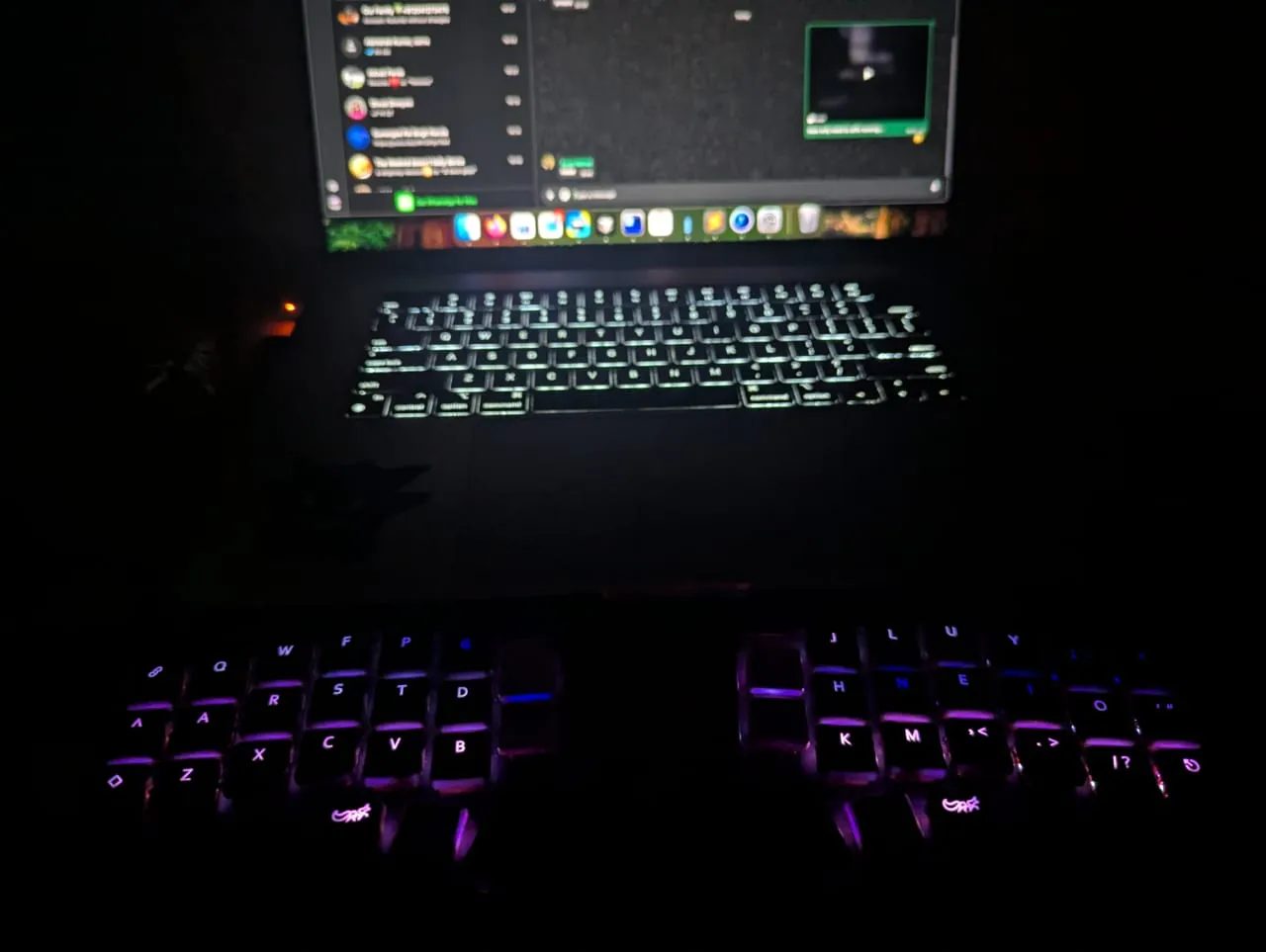
After the stems began snapping, I went back to the MBKs. By this point in time, I was familiar enough with Colemak-DH that I didn't really need legends to type, though the lack of lights was still sad. I also tried 3D printing a couple pieces, but they didn't fit too well and kept slipping off - most keycap models were designed for MX stems.
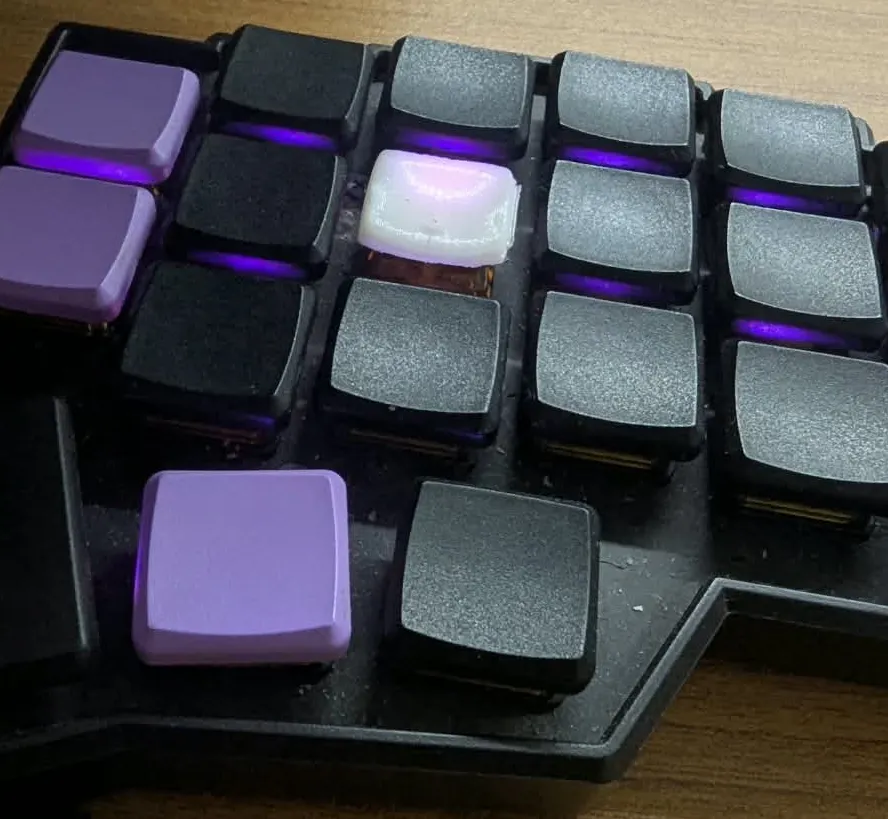
Maybe someday I'll get these...
# Storage
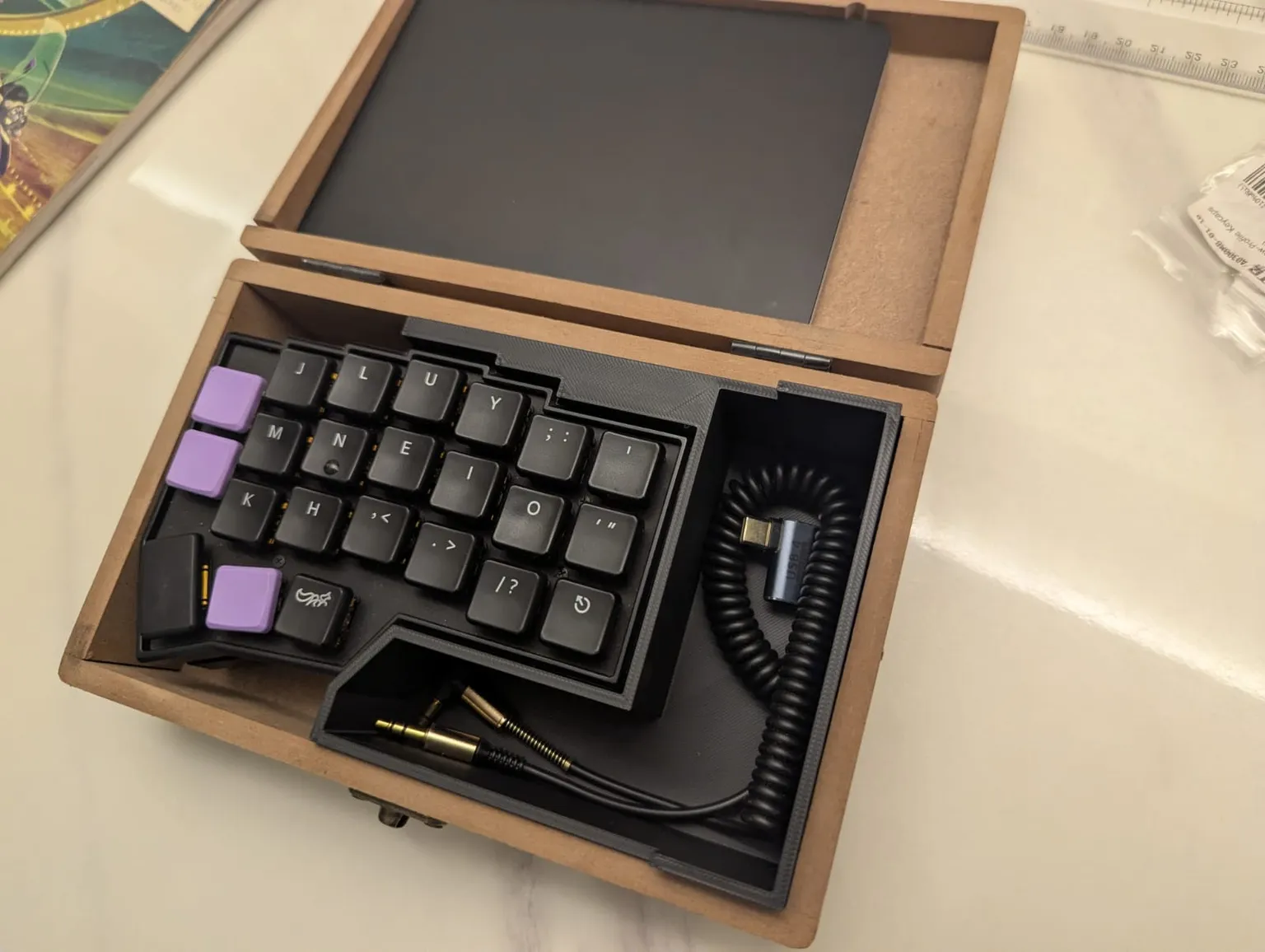
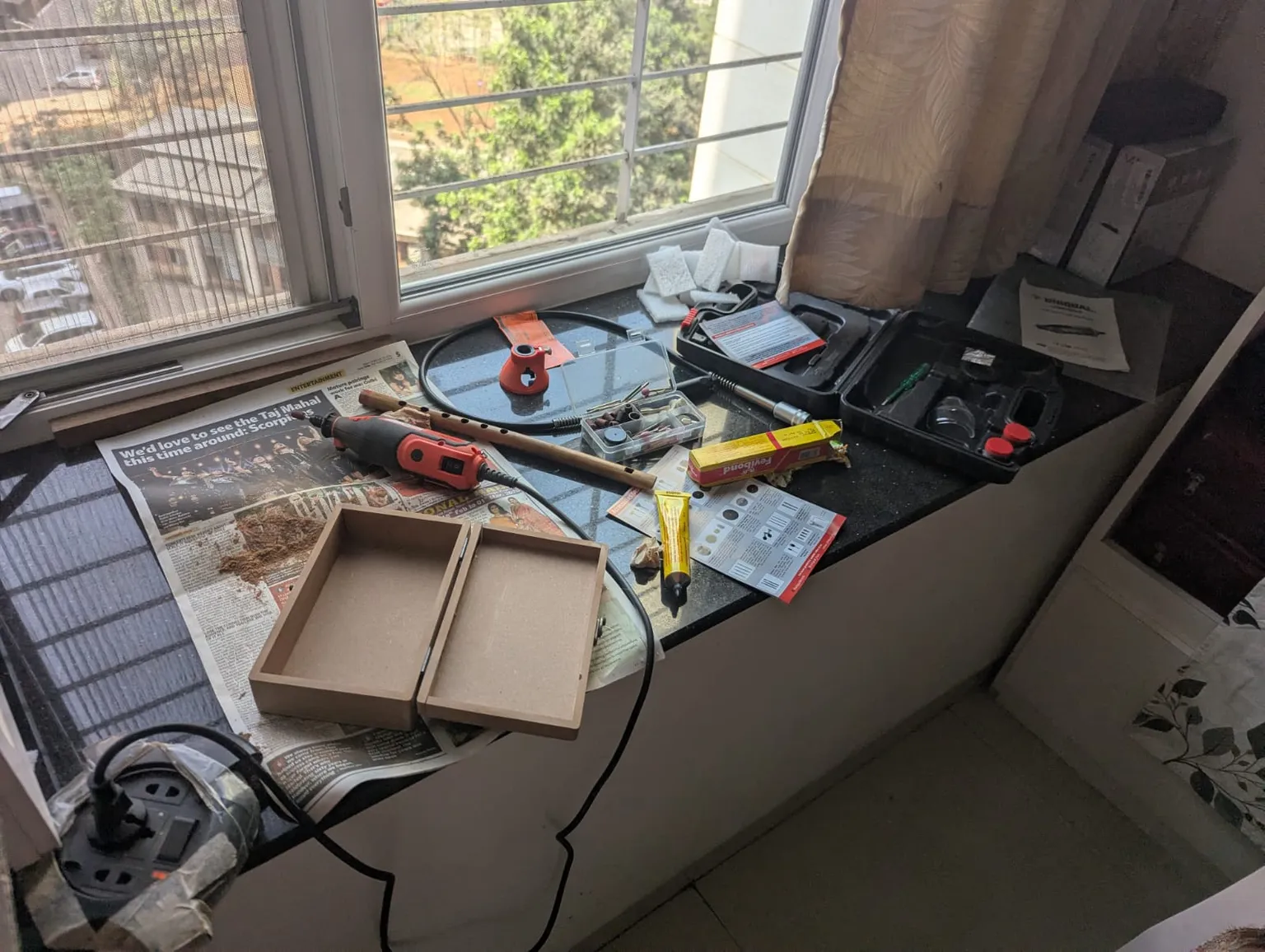 Since my keyboard was nice and smol, I decided to try and find a better way to pack it and take it around than just 'pop in a bag and pray nothing breaks'. With a random box I ordered off Amazon, some woodworking tools, a couple nails, and my trusty 3D printer, I made this beauty of a box. It had a segment below to store both halves of the keyboard, a small section to store my cables, and enough space in the top half to smoothly slide in my touchpad.
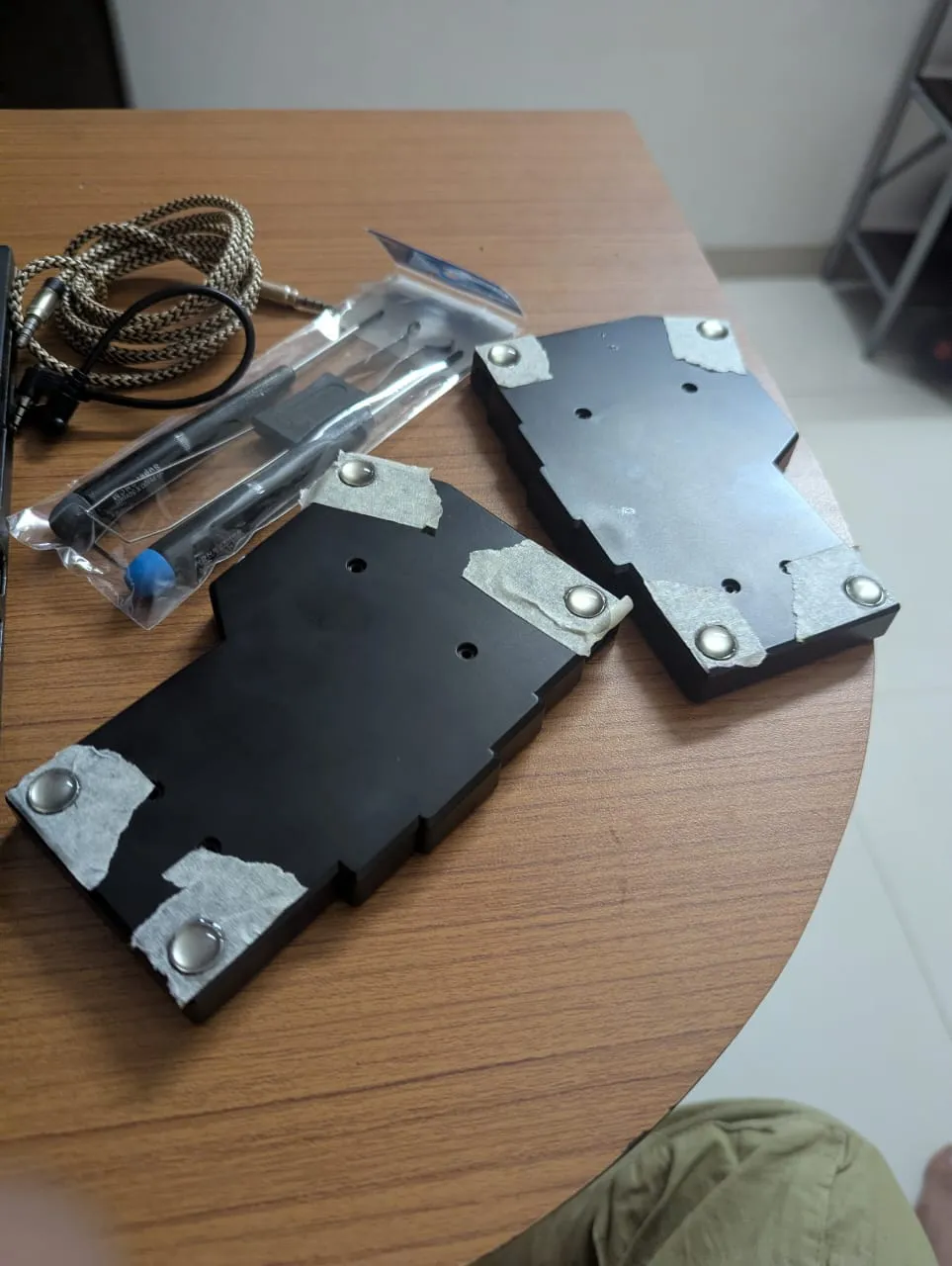
I also popped off the rubber studs on the bottom to slip in some magnets between the feet, so they would clip together nicely.
Conveniently, the box also had enough room for the wrist supports!
# Tenting and Wrist Supports
Split keyboards are great for ergonomics because your hands end up in a relaxed position, and they can move a lot more comfortably. This is also enabled by other stuff, like wrist rests and putting the keyboards on a tilt to better match the wrist's natural resting positions.
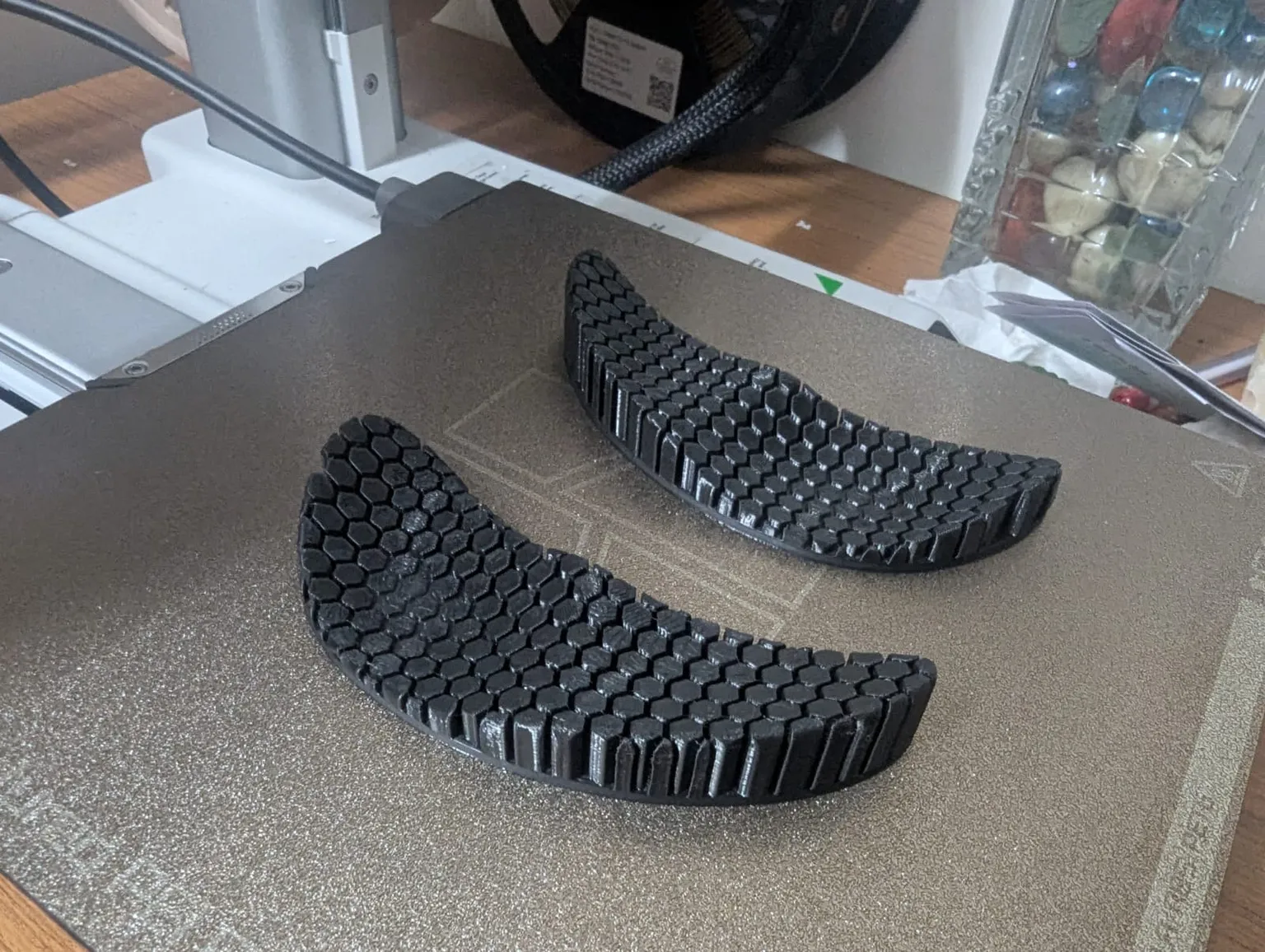
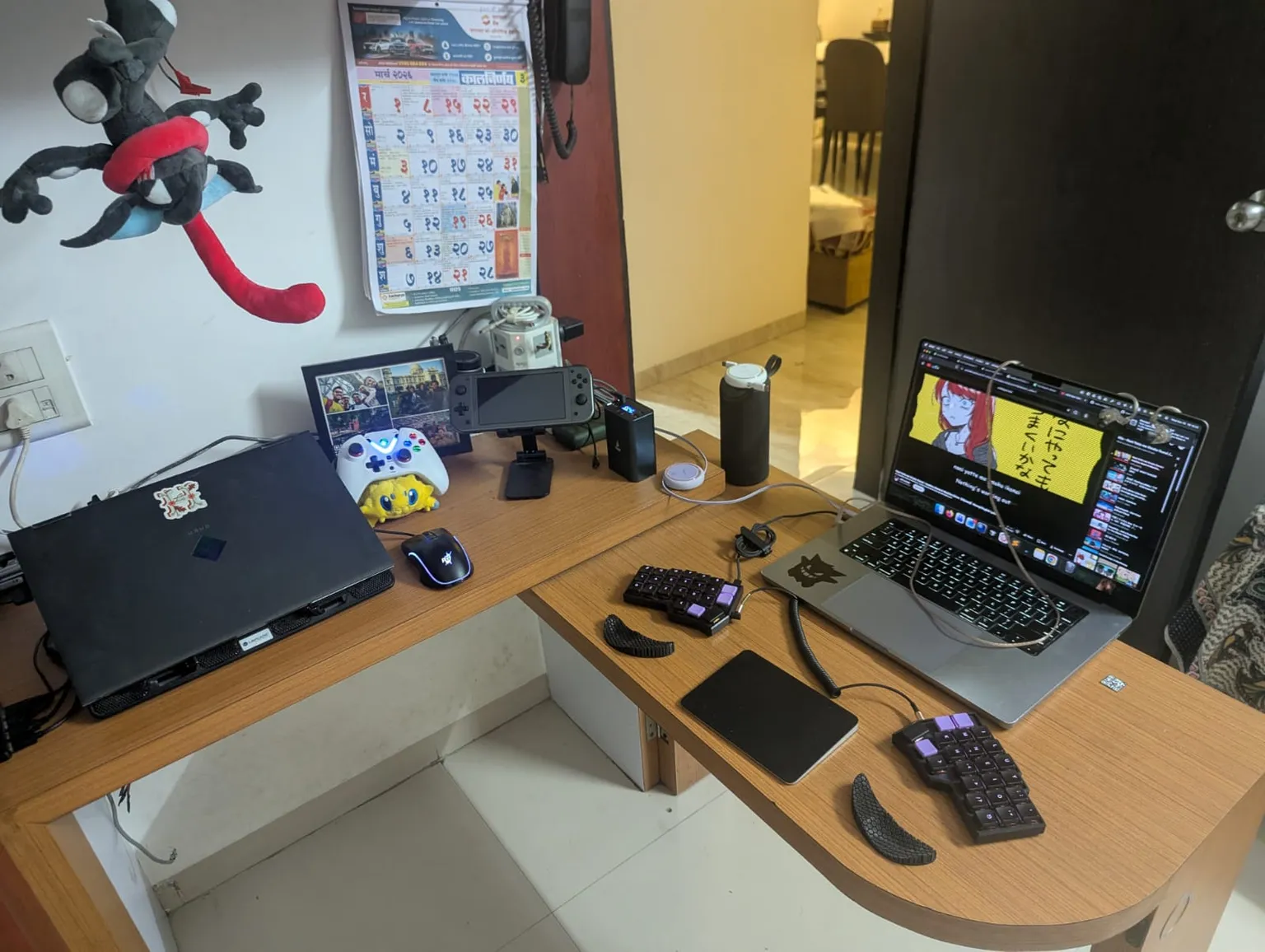
Having a 3D printer meant that getting a cool pair of wrist rests was pretty easy:
Tenting, on the other hand, was a bit harder. I started out by trying some simple rigid bent metal sheets, which got the job done but were a bit clunky and slid around a lot.
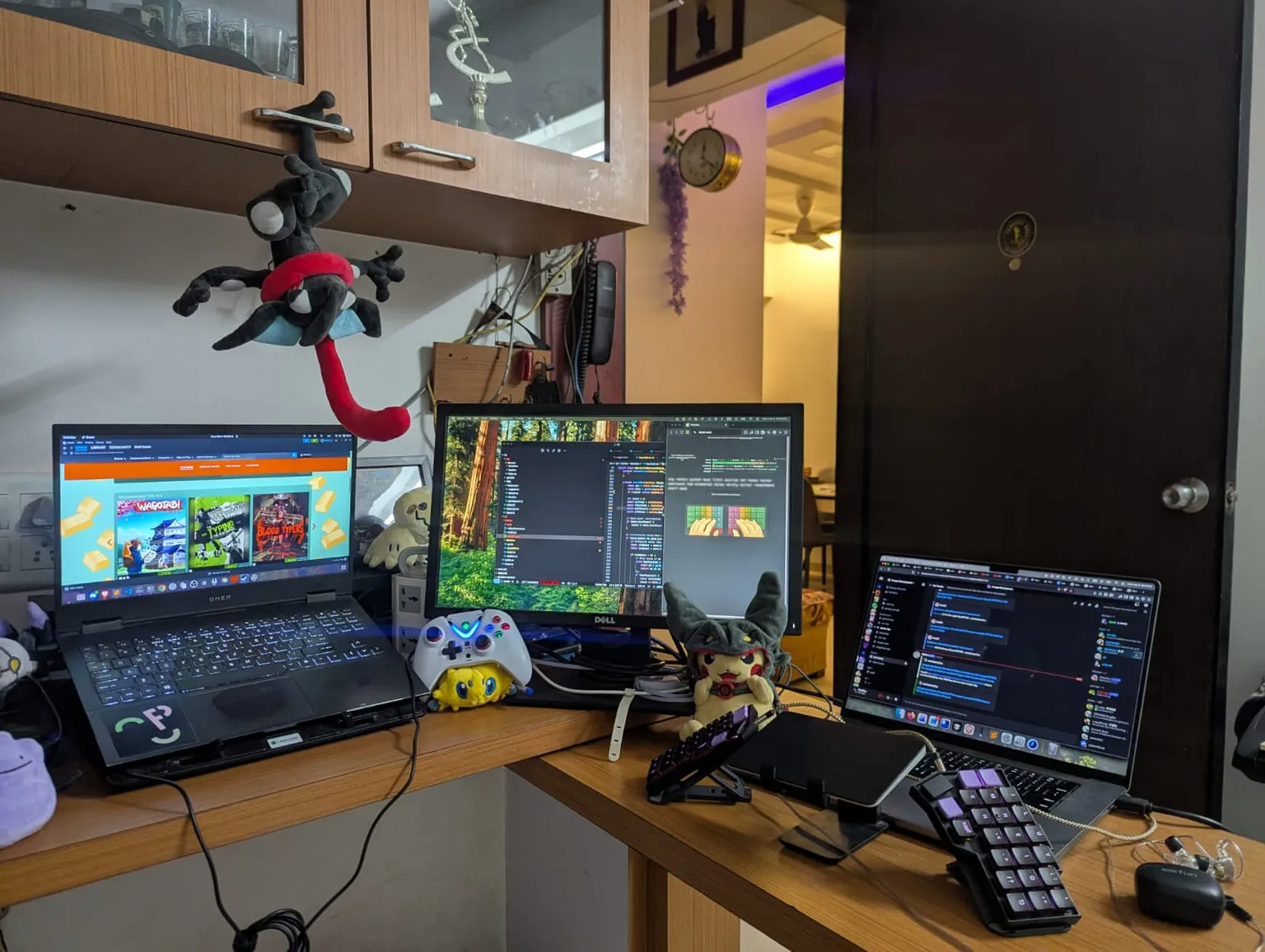
I then tried using some phone stands, which were slightly better but still very wobbly when typing.
Instead, I stuck some MagSafe-compatible metal rings on the bottoms of each half, and got a couple MagSafe phone mounts. These mounts were vacuum-sealed at the bottom via suction and connected to the keyboard halves via magnets. While the magnetic grip was perfectly strong (wouldn't disconnect without direct sideways pressure), the vacuum bit was a bit more frustrating.
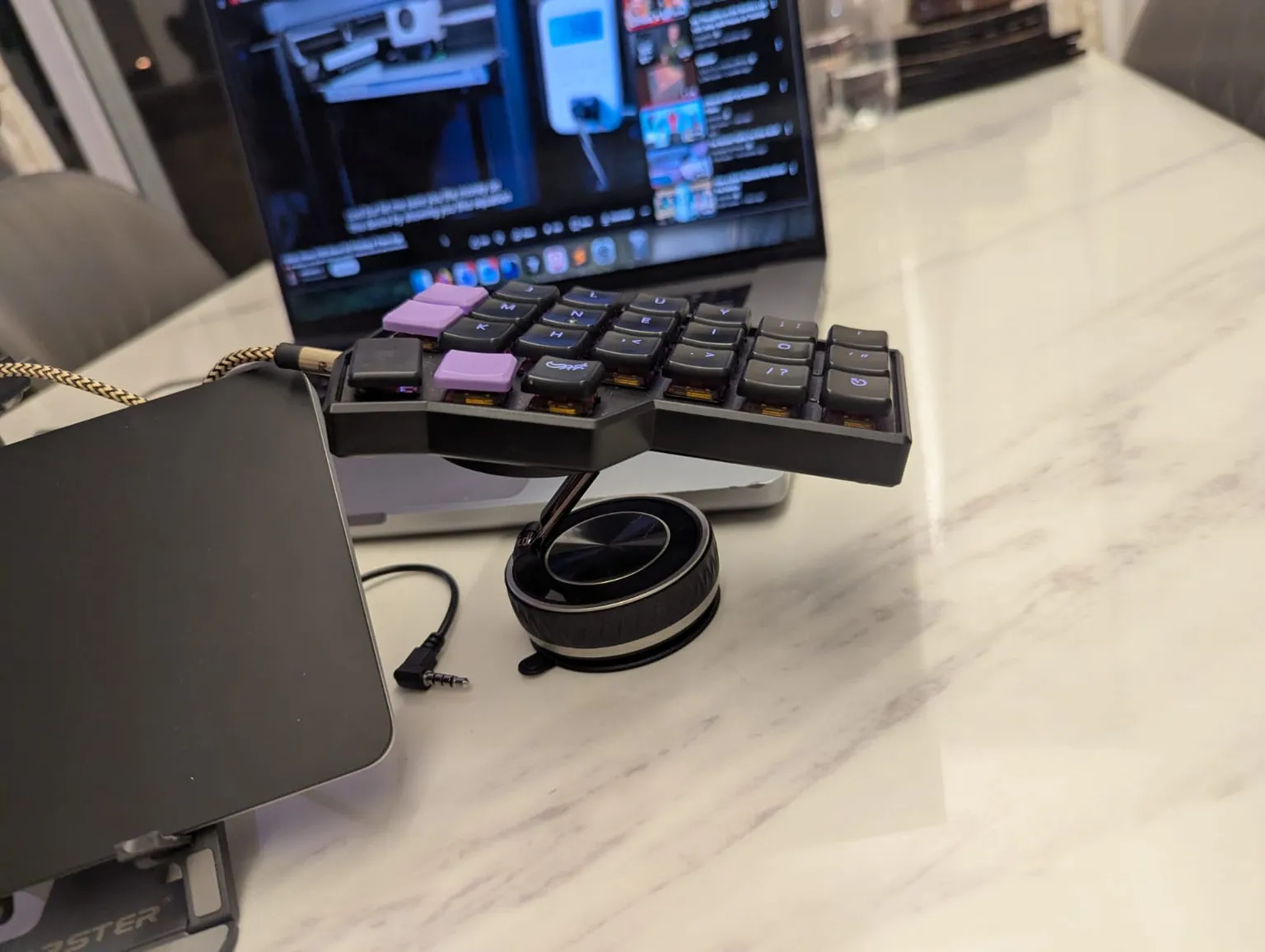
The issue with the suction cups on the bottom was that it didn't really work nicely with my wood-textured desk, leading to workarounds. Surely someone wouldn't try to smoothen their desk with tape, right?
...right?
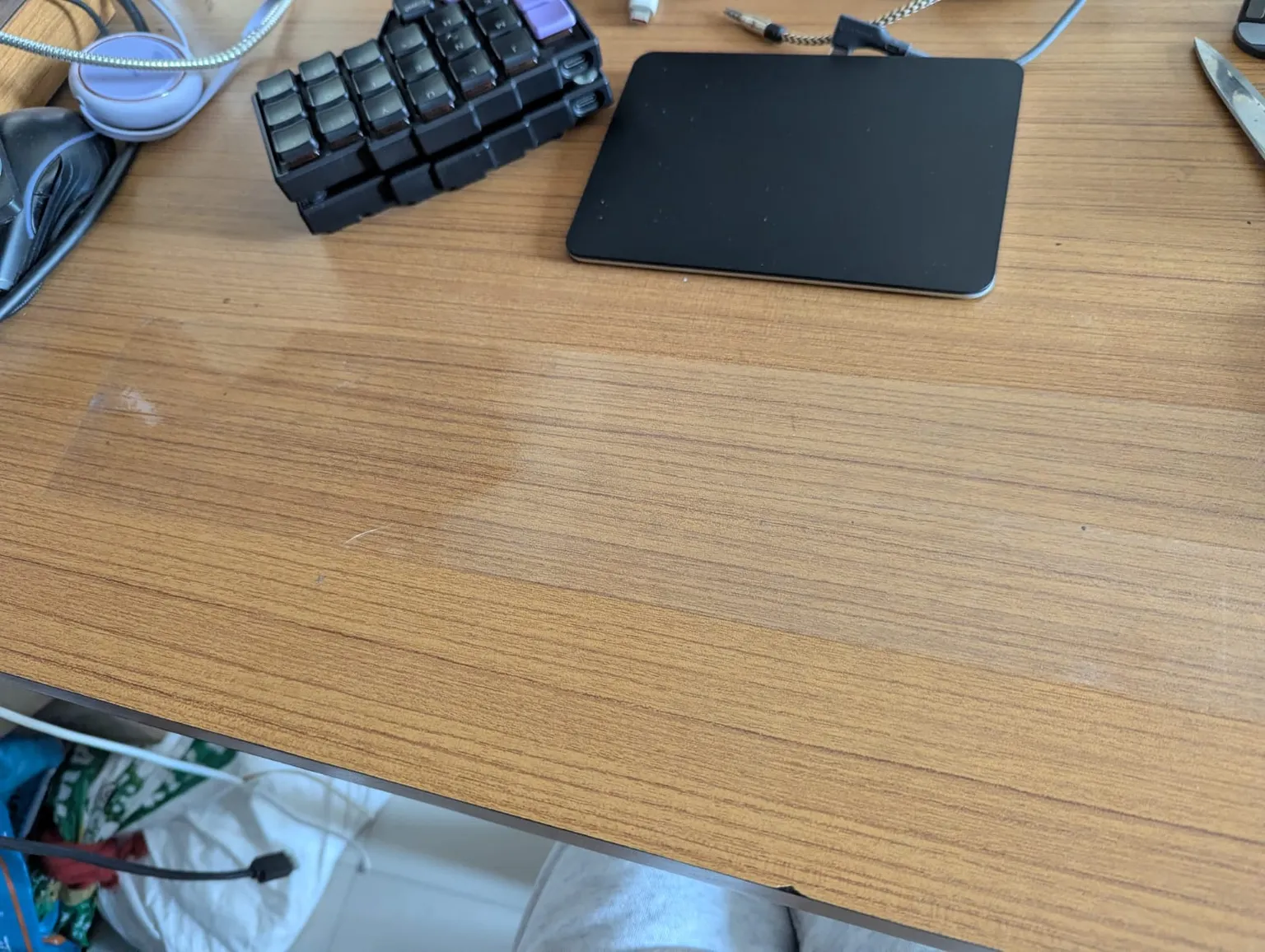
Anyways, the tape worked for a bit, but it was super finicky and eventually the two pieces had a tiny gap between them, so I gave up entirely on tenting. For now, at least.
# Current State
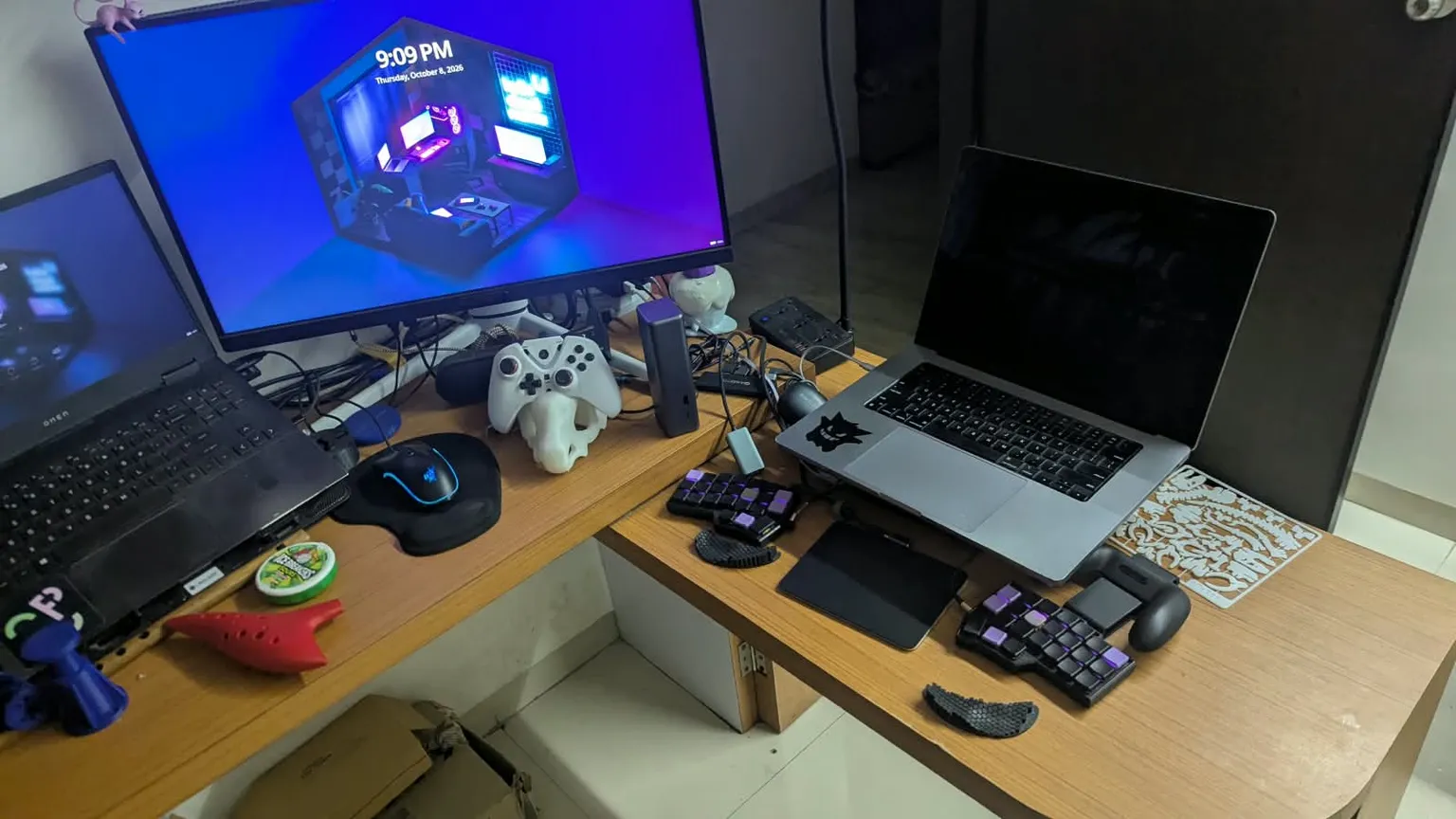
So that's how my lovely keyboard is at the moment! I hope to be able to start printing my own keycaps soon so I can make this pretty, and maybe find a proper tenting setup. For now I've been putting my laptop atop a box to make room for my keyboard, which is kinda awkward. But for now I'm very happy with it - even if my speed's still stuck at 60wpm.